How to Link Merchant Accounts
In some cases, a merchant may operate multiple accounts within the system.
To simplify navigation, you can link accounts so the merchant can easily switch between them from their dashboard.
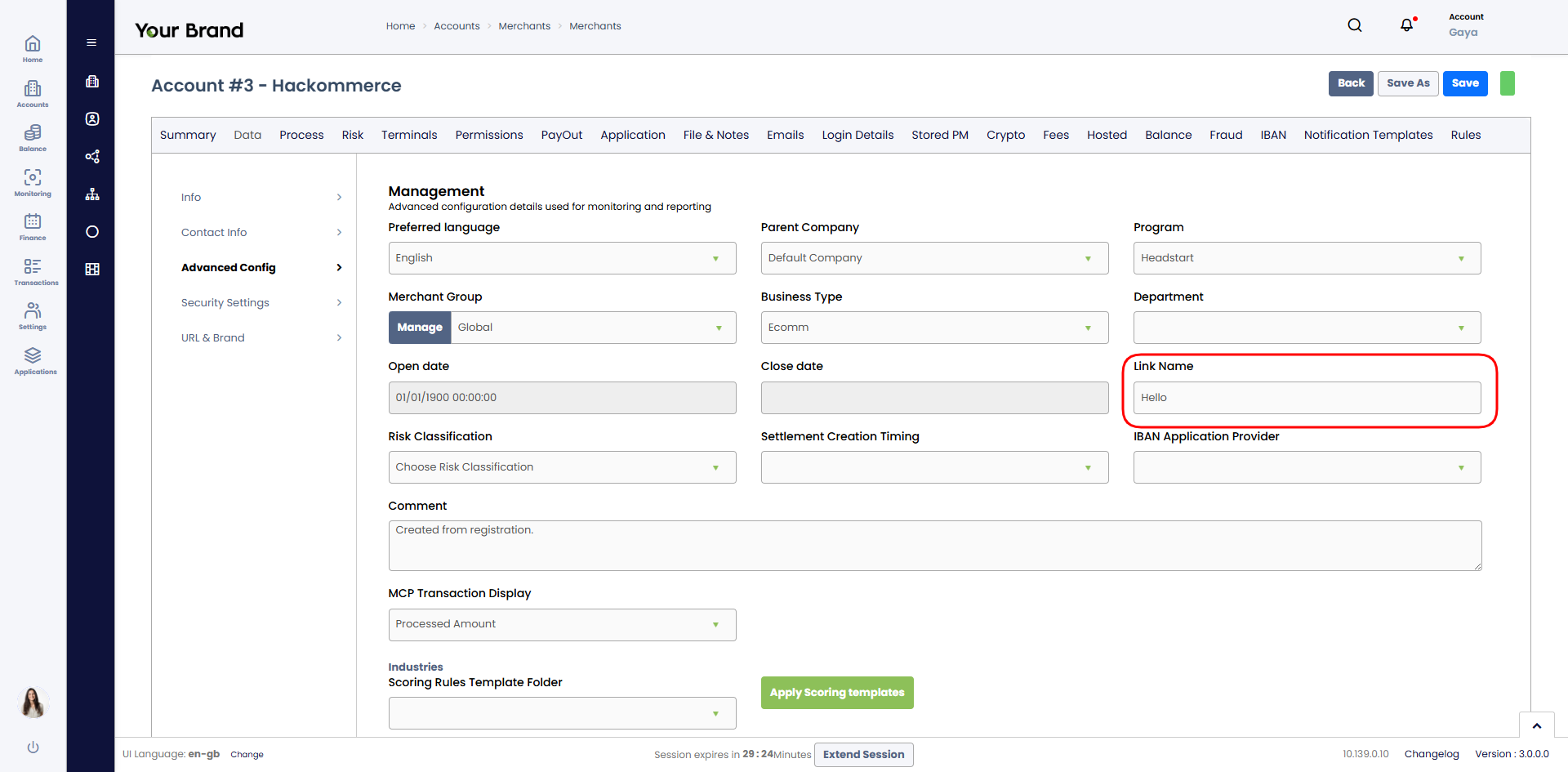
Step 1 – Configure the Link Name
Navigate to: Accounts → Merchants → Merchants
Open the relevant merchant account.
Go to the Data tab.
In the field Link Name, enter a unique identifier that will be used across all accounts you want to connect.
Example: If the merchant has three accounts, assign the same value in the Link Name field for all three.
Step 2 – Save and Apply
After saving, all accounts that share the same Link Name will be considered linked.
The merchant will then see a dropdown menu in their Merchant Control Panel, allowing them to switch between the connected accounts seamlessly.
Important Notes
Sub-Users: Linked accounts are only accessible to the main merchant user. Sub-Users do not inherit this switching ability and must log in separately to each account.
If you leave the field empty or use different values, the accounts remain separate.
Only accounts with the exact same Link Name will be connected.
Was this article helpful?
That’s Great!
Thank you for your feedback
Sorry! We couldn't be helpful
Thank you for your feedback
Feedback sent
We appreciate your effort and will try to fix the article